Mojo Launcher is an Android app that lets you play Minecraft Java Edition on your phone. It works like a tool that brings the PC version of Minecraft to mobile, so you can enjoy the same game without a computer. You can use mods, and add resource packs easily. It supports mod loaders like Forge and Fabric, which help you change and customize the game. Since Minecraft Java is made for PC, Mojo Launcher gives on-screen touch controls and also supports Bluetooth controllers. It runs better on many Android devices, even low-end phones, and it helps reduce lag and overheating.
What is Mojo Launcher?
Mojo Launcher is a simple tool that helps players install, manage, and open different versions of Minecraft easily, especially on Android phones. It is useful because it lets users play Minecraft without a difficult setup, add mods, and manage game files in one place. Many players use it to run Minecraft Java or modified versions on mobile and keep their game settings organised. It also saves time by reducing manual work, so beginners can start playing quickly without technical skills. It also support mods, texture packs, and other settings to improve the game.
Key Features of Mojo Launcher
- Performance Optimisation: It is made to run smoothly on low-end phones by reducing lag and improving stability.
- Multiple Version Support: It helps you switch between different Minecraft versions easily in one app.
- Java Edition Support: It lets you play Minecraft: Java Edition on Android phones with the same features as the PC version.
- Mod Support: It allows players to use mods, shaders, and texture packs using Forge and Fabric.
- Custom Controls: It gives on-screen touch controls and also works with Bluetooth controllers for easy playing.
- Server Access: It lets you join Minecraft Java multiplayer servers directly from your mobile.
- Frequent Updates: It gets updates to fix bugs, improve speed, and add new features.
- Shader Support: It lets you use shaders to make lighting, shadows, and graphics better.
- Keyboard and Mouse Support: It works with an external keyboard and mouse for a PC-like experience on mobile.
- Game File Management: It helps you manage Minecraft files, mods, and versions in one place.
- Auto Configuration: It automatically sets up important game files, so you don’t need manual setup.
- FPS Settings: It allows you to adjust graphics and FPS for better performance on your device.
- Bug Fix System: It helps reduce common game crashes and errors for a stable experience.
- Multilingual Support: It supports different languages, so more users can use it easily.
Mojo Launcher Requirements
| Requirement Type | Minimum Requirement | Recommended Requirement |
| Operating System | Android 7.0 or higher | Android 10.0 or higher |
| RAM | 2 GB | 4 GB or more |
| Storage Space | At least 1 GB free | 3 GB or more free |
| Processor | Quad-core 1.5 GHz | Octa-core 2.0 GHz or higher |
| Device Type | Android smartphone/tablet | High-end Android device for smooth gameplay |
How to Download and Install Mojo Launcher?
- visit ultimmc.com, and navigate to the menu to find the download link
- Click on the “Download” button for the Mojo Launcher APK.
- Wait for the file to finish downloading on your phone.
- Open Settings and turn on “Install from Unknown Sources” if it is off.
- Open the Downloads folder and find the APK file.
- Tap on the file and click “Install.”
- Wait for the installation to complete.
- Open the app from your home screen.
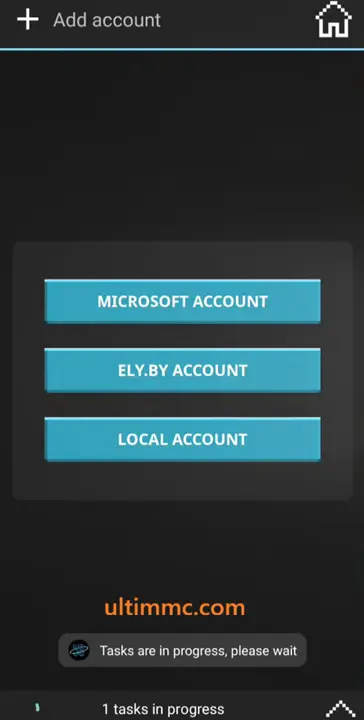
- Log in with your Microsoft or Minecraft account.
- Start setting up Minecraft and enjoy playing on your device.
| Name | MojoLauncher.zip |
| Version | Latest |
| Size | 145 MB |
| Last updated | 3 days ago |
| Supported device | Android |
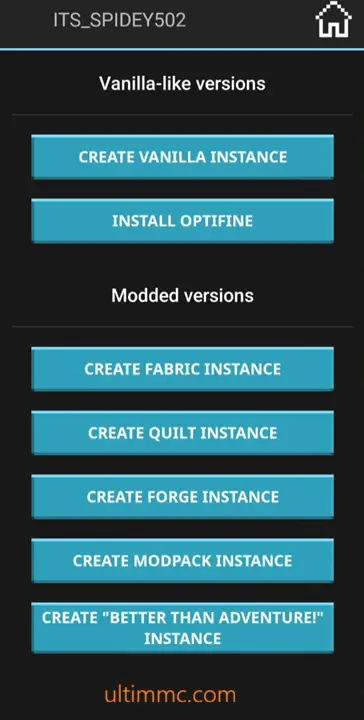
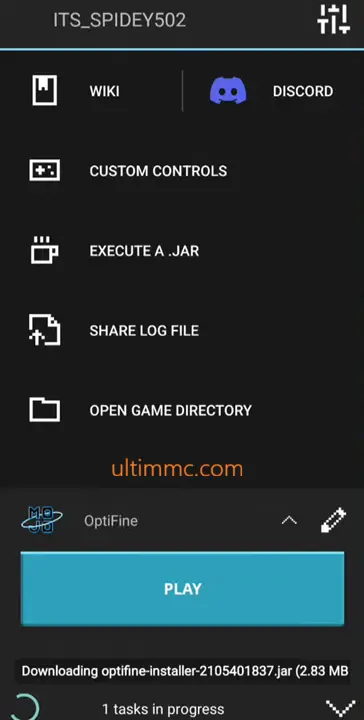
Step-by-Step Setup Guide
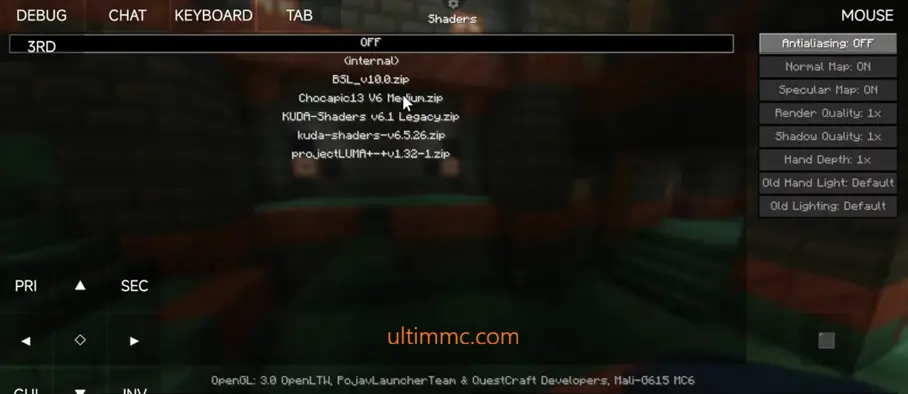
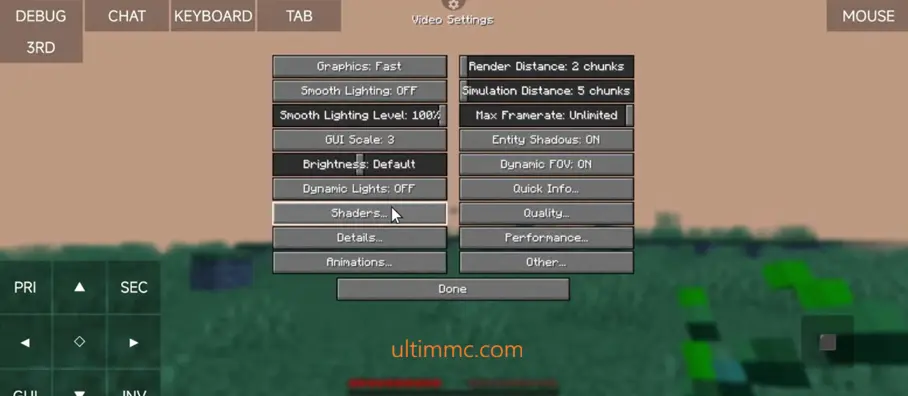
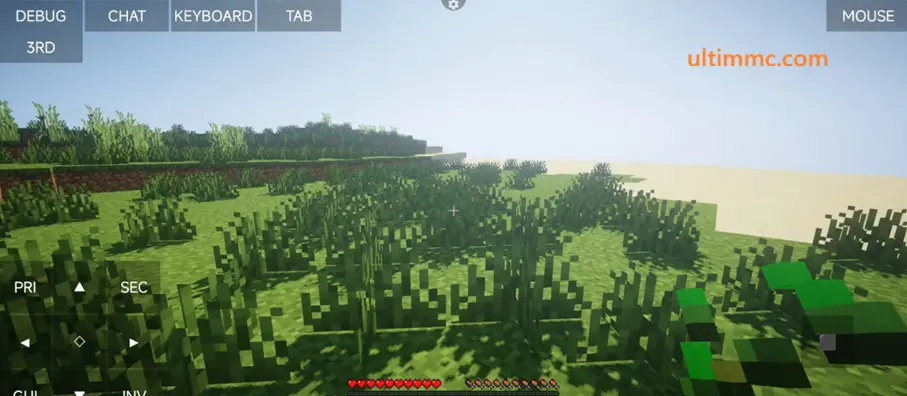
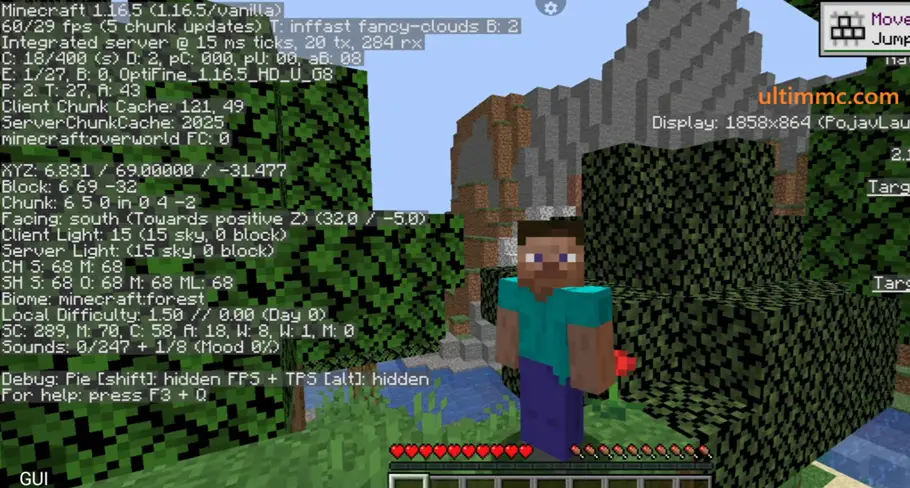
It is very easy to use, even for beginners. It helps you set up and play Minecraft: Java Edition on your Android phone without any difficult steps. The app shows you simple instructions, so you can easily log in, choose game versions, and change settings in one place. You can also add mods, shaders, and other features with just a few taps. Here are the steps to use it:-
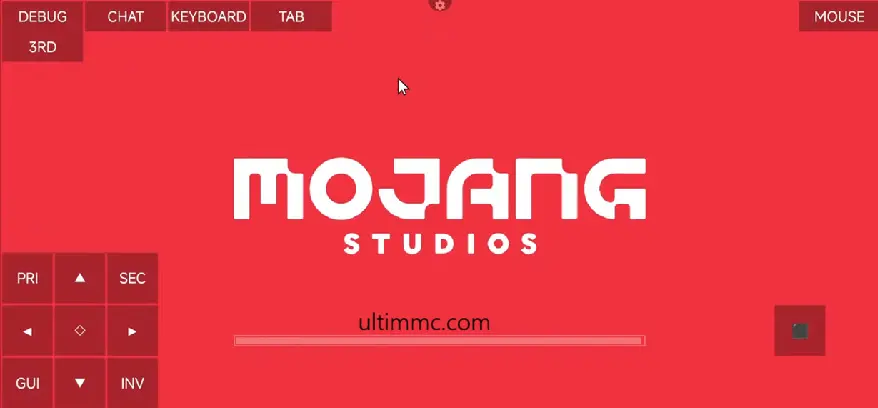
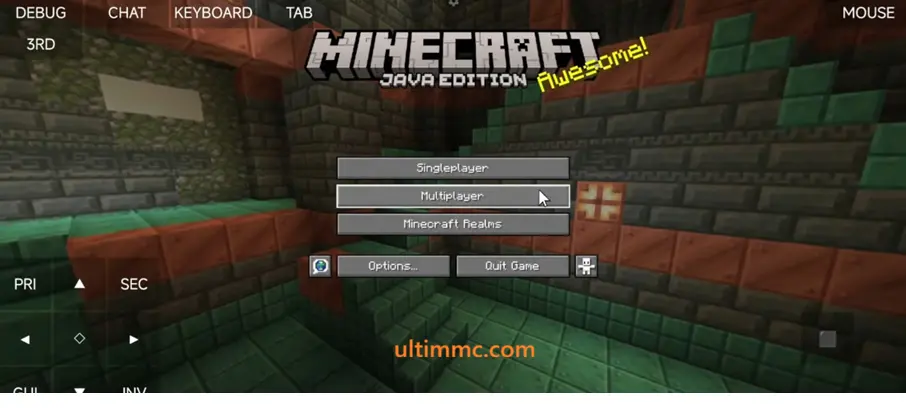
- After installation, open the app on your phone.
- Sign in with your Microsoft or Minecraft account.
- Allow all permissions if the app asks for them.
- Wait for the app to load the game files.
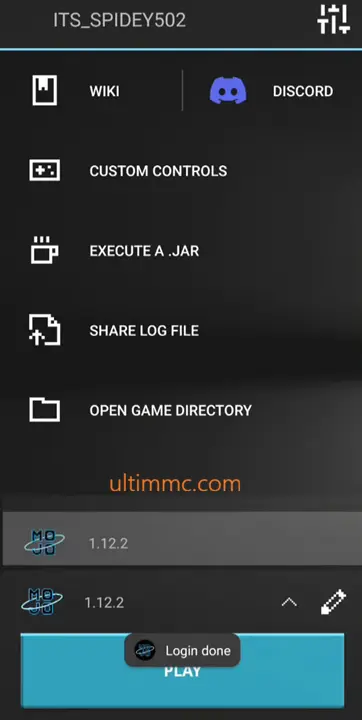
- Select the Minecraft version you want to play.
- Download or install any files if it asks.
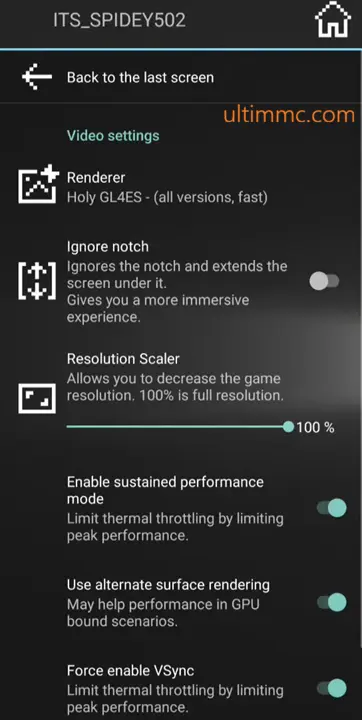
- Set your settings like graphics and controls.
- Add mods, shaders, or resource packs from the menu option.
- Tap on the “Play” button to start the game.
- Wait for Minecraft to open and enjoy playing on your mobile.
Performance Optimization Tips
- Avoid playing for too long without breaks, as overheating can slow down your device and cause lag.
- Use a strong and stable Wi-Fi connection for smooth multiplayer gameplay and to avoid lag or disconnects.
- Turn off extra animations and background apps in your phone settings to make the game run faster.
- Close all background apps before starting Minecraft to free up RAM and make the game run smoother without lag or freezing.
- Set graphics quality to low or medium in the game to improve FPS, especially if you are using a low-end Android device.
- Reduce render distance so the game loads fewer areas at once, which helps reduce lag and improve smooth gameplay.
- Keep your device storage free by deleting unused apps, files, and cache, so Minecraft has enough space to run smoothly.
- Restart your phone before playing to clear memory and stop background apps for better game performance.
- Always update Mojo Launcher and Minecraft to the latest version for better speed, fixes, and smooth performance.
- Lower visual effects, like particles if available, as this can help improve FPS on weak devices.
- Clear the cache of the app and game regularly to remove junk files that may slow down performance over time.
Benefits of Using Mojo Launcher
- Allows you to use mods, shaders, and texture packs to change and improve gameplay
- It gives touch controls and also supports Bluetooth controllers for smoother play
- Made to reduce lag and run better even on low-end Android phones
- It lets you join Minecraft Java multiplayer servers directly from your mobile
- It is simple and beginner-friendly, so anyone can set up and play Minecraft without confusion
- Let’s you play Minecraft Java Edition on Android phones without a computer
- It lets you change graphics performance and controls based on your device
- Helps you manage game versions, mods, and files all in one app easily
- Removes hard setup steps so you can start playing Minecraft quickly
- Gives you a PC like Minecraft experience that you can play anywhere
- It uses less storage and runs smoothly on most Android devices
- Gets updates to fix problems, improve speed, and add new features
Is Mojo Launcher Safe to Use?
Yes, it is safe if you download it from a trusted and official source like us. It is usually safe to install on your Android phone. You should always use your official Microsoft or Minecraft account and avoid fake or modified versions. To stay safe, download it only from trusted websites and keep your phone security settings on. It is also better to scan the APK file with an antivirus before installing it. Do not give extra or unnecessary permissions to the app. Always keep the launcher updated to reduce bugs and security problems.
How to Update Mojo Launcher?
- Go to our website, where we provide the download link.
- Check if the latest version of Mojo Launcher is available. We frequently update when a new version becomes available.
- Click on the “Download Latest Version” button.
- Wait for the new APK file to download completely.
- Open your phone Settings and make sure “Install from Unknown Sources” is enabled if needed.
- Go to the Downloads folder and find the new APK file.
- Tap on the file and click “Install” to update the app.
- Wait for the installation process to finish.
- Open the updated app from your app list and use it.
Best Settings for Smooth Use
- Lower resolution if your phone is slow or the game is lagging.
- Close all background apps before starting Minecraft to free up memory.
- Use simple control settings to reduce pressure on your device.
- Turn off extra visual effects to make gameplay smoother.
- Set graphics to low or medium to reduce lag and make the game run smoother.
- Reduce render distance so the game loads fewer areas and works faster.
- Turn off extra graphics like clouds, shadows, and smooth lighting if possible.
- Always keep the game updated for better speed and bug fixes.
- Turn off V-Sync if available to get higher FPS.
- Use lightweight texture packs instead of heavy HD packs.
- Avoid using too many mods at the same time to prevent lag.
Troubleshoots
- Login problem: Check your username and password carefully. If you forget it, use the “Forgot Password” option.
- Game not loading: Make sure your phone has enough storage. Close other apps running in the background and try again.
- Slow performance or lag: Close extra apps and lower game graphics settings. Restart your phone if required.
- App won’t start: Restart your phone and try again. If it still does not open, uninstall and reinstall it. Also, make sure you are using the latest version.
- App keeps crashing: Clear the app cache and restart your phone. Also, check if your phone has enough RAM and update the app.
- Game stuck on loading: Check your internet speed. Close other apps and restart the game.
- Graphics not working properly: Lower graphics settings in the app, and update your phone system if available.
- Server not connecting: Check your internet and try again later. Turn off VPN or proxy if you are using it.
- Controls not working: Restart the game and check settings. If it still does not work, reinstall the app.
- Installation failed: Make sure you have enough storage space and download the file again from a safe source.
Conclusion
It is a simple app for Android phones that lets you play Minecraft Java Edition on your smartphone. It helps you play Minecraft on your mobile with easy controls. You can use mods, shaders, resource packs, and also join online servers. It works with different Minecraft versions and supports touch controls as well as Bluetooth controllers. The app is made to run smoothly, even on low-end phones, by reducing lag and improving speed. It is very easy to install and use, even for beginners. Overall, this application makes Minecraft Java easy and fun to play on mobile.